Copy My Data: Transfer Content
- 4.3
- Rating
- 50.00M
- Installs
- Free
- Price
 Analysis by App-foxy
Moving to a new phone sounds simple until the old device is full of small things that matter: contacts, photos, documents, and the Wi-Fi details you do not want to recreate one by one. That is the recurring problem Copy My Data: Transfer Content tries to solve. I reviewed it as a practical transfer utility rather than as a general backup service, and its value is easy to understand: it gives you a direct way to move selected content between phones without making you rebuild your digital life manually.
The app is developed by Red Sky Labs and sits in the Tools category. It is free to install, rated for Everyone, and has become a widely used option with more than fifty million installs. That reach matters because a transfer tool needs to be familiar and straightforward; when someone is already dealing with a new phone, they usually do not want to learn a complicated migration system.
My overall impression is that it works best when you want a focused phone-to-phone transfer and both devices are available at the same time. It is less convincing as a complete replacement for a cloud backup, a computer archive, or a manufacturer migration suite. That distinction is important, because the fastest solution for a one-time move is not always the safest solution for long-term storage.
You May Also Like

 AccuWeather: Weather Radar
AccuWeather Review: A Quick, Clear Forecast for Everyday Decisions
For everyday plans, the best forecast is the one you can understand quickly. AccuWeather makes rain timing, radar, and local conditions easy to act on, with a few trade-offs.

 Hill Climb Racing
Why Hill Climb Racing Still Turns Crashes Into One More Run
A tiny car, a bumpy hill and one more upgrade: Hill Climb Racing keeps resurfacing because its simple chaos makes every near-miss feel personal.

 AliExpress - Shopping App
AliExpress Makes Global Shopping Feel Personal, but Shoppers Bear the Risk
AliExpress turns a global marketplace into a pocket-sized discovery engine. Its reach is useful, its shopping loop compelling, and its trade-offs easy to miss.

 Lords Mobile: Kingdom Wars
Lords Mobile Is a Kingdom-Building Routine, Not a Quick Match
A case-by-case verdict on the building, battles, device demands, and social commitments that make Lords Mobile rewarding for some players and exhausting for others.

 PDF Scanner app - TapScanner
TapScanner Makes Paperwork Easier to Capture, Check, and Share
TapScanner makes scanning with a phone feel less like a rescue operation and more like a dependable step in getting work done. Its capture tools are useful, though not flawless.

 Block Blast!
 Shows How Much a Puzzle Game Can Leave Out
A quiet grid game shows why puzzle players increasingly value instant clarity, repeatable skill and low-pressure play—and where the genre still needs to catch up.
More From Our News Desk
View All News


What the first setup feels like
The initial appeal is that the workflow is centered on the two phones, not on uploading everything somewhere first. I found that approach useful when the old handset was still working and I wanted to move content directly to the replacement. Instead of hunting through separate apps for contacts, pictures, and files, I could treat the transfer as one planned task.
The first step is to install the app on the devices involved and prepare them before starting. I recommend charging both phones, closing anything unnecessary, and checking that the receiving phone has enough free space. These are ordinary precautions, but they make a real difference: a transfer can appear to be an app problem when the real issue is a nearly full destination or an interrupted connection.
The interface is most useful when you decide in advance what actually deserves to be moved. A new phone is a good excuse to leave behind duplicate images, forgotten downloads, and documents you no longer need. Rather than copying everything automatically, I would review the categories first and use the move as a small cleanup session. This saves storage and makes the new device feel ready sooner.
One practical detail is easy to overlook: the transfer is not the same as restoring every part of a phone. Contacts and ordinary files are one thing, while app-specific data, account sessions, protected media, and settings can follow different rules. I would therefore use this tool for the content it is designed to handle, then open important apps separately and confirm that their own sign-in or backup systems are ready.
That separation also answers a question many people have before installing it: can it make an exact clone of an old phone? I would not approach it that way. It is better understood as a content-moving utility. It can reduce the work of carrying useful personal data across, but it should not be treated as a complete image of the old device.
The current release is version 70.3.1, and the app supports devices running Android 7.0 or later. That makes it suitable for many older Android phones as well as newer ones, although the experience can still vary depending on the devices, their available storage, and the type of content being moved.
A realistic move from an old phone to a new one
Imagine replacing a phone after several years. The old device contains a long contact list, family photos, work documents, and saved Wi-Fi information. You want the new handset usable on the same day, but you do not want to email files individually or search through folders with a cable.
This is where I see the strongest use case. I would first remove obvious clutter from the old phone, then select the categories that matter, start the transfer, and use the waiting time to check the new device’s storage. Once the process finishes, I would open the contacts, browse a sample of photos, and test a few transferred documents instead of assuming that a completion message means every item is perfect.
That last check is one of my most useful recommendations. A transfer tool should be judged not only by whether it starts, but by how confidently you can verify the result. Checking several items from different folders catches problems early, especially when the old phone contains years of mixed personal and downloaded content.
When it helps beyond a full phone upgrade
You do not have to wait for a major upgrade to find a reason to use it. It can be useful when moving from a temporary phone back to your main handset, setting up a replacement after a damaged device, or helping a family member organize content on a newer phone. In these situations, the direct approach is often less intimidating than teaching someone a full cloud-backup routine.
It is also handy when the person receiving the phone does not need your entire digital history. For example, I would transfer selected contacts and shared photos to a family member’s device rather than giving them access to a complete backup. This selective workflow is more controlled than restoring an account that contains unrelated personal material.
Another less obvious use is preparing a phone for resale or hand-me-down use. I would move the information I need first, verify it on the destination, and only then reset the old phone. The important trade-off is that the app helps with migration, but it does not remove the need to handle account sign-outs, device resets, and personal privacy separately.
How it compares with the usual alternatives
Compared with sending files individually through messaging apps, this is clearly more practical for a large move. Messaging introduces duplicate copies, compression, scattered conversations, and a lot of tapping. A direct transfer workflow keeps the task closer to its real purpose: moving content from one phone to another.
Compared with cloud storage, the choice depends on the situation. Cloud services are better when the old phone is unavailable, when you want an off-device backup, or when you regularly use several devices. This app is more appealing when both phones are beside you and you want to avoid uploading a large personal library before downloading it again.
Compared with a computer and cable, the app can feel less cumbersome for people who do not want to manage folders manually. A computer remains the better option for creating a long-term archive, inspecting every file, or keeping an independent copy. I would not choose a phone-transfer app as my only backup strategy, especially for irreplaceable photos and documents.
Manufacturer migration tools may offer deeper support for their own phones, including more settings or app-related information. If you are moving within one brand and its official tool is available, I would compare both options before starting. Copy My Data: Transfer Content is more attractive when you want a broadly understandable utility rather than a brand-specific setup process.
Where it saves time, and where it still creates friction
The biggest time saving comes from consolidation. Instead of opening a contacts app, a gallery, a file manager, and a Wi-Fi settings screen as separate jobs, you can approach the move as one transfer session. That does not make every category identical, but it reduces the mental overhead of remembering what has already been copied.
I also like the fact that it encourages a deliberate handover. A rushed phone upgrade often leaves people with missing contacts or forgotten files because they assume the account setup will handle everything. Using a dedicated transfer step makes those items visible. In my experience, that visibility is almost as valuable as the transfer itself.
The friction appears when the two phones are not equally prepared. A weak battery, limited storage, an unstable connection, or a large amount of mixed content can turn a quick task into a waiting exercise. I would avoid starting immediately before leaving home or before handing the old phone to someone else. Give yourself time to repeat a category if necessary and verify the result.
There is also a privacy trade-off. A direct transfer keeps the process focused on the devices, but you still need to think about who can access the phones during setup and what you choose to copy. I would not hand an unlocked phone to another person and walk away during the process. I would also review the selection carefully when moving a device to a family member, because convenience can easily become accidental oversharing.
Another limitation is expectation management. The app can make personal content easier to move, but it does not turn incompatible systems into identical environments. Some applications keep their data inside their own accounts, some files may have special handling, and phone settings are not necessarily reproduced just because contacts or documents were transferred. Anyone expecting a perfect mirror may find the experience incomplete.
The free price makes it easy to try, though in-app purchases range from $2.99 to $79.99 per item. I would pay attention to the purchase screen and the exact option being offered rather than assuming every function is included in the free experience. For a one-time migration, the free entry point is appealing; for anyone considering a paid option, the decision should be based on the amount of content and the value of the time saved.
The app has an average rating of 4.3 from more than two hundred sixty thousand ratings, along with over four thousand written reviews. Those figures suggest that the basic idea works for a large audience, but they should not replace your own preparation. Transfer experiences are especially sensitive to the phones involved, so a highly rated utility can still require patience in a particular move.
Who should use it
I would recommend it to someone who has both phones in hand, wants to move common personal content, and prefers a guided utility over manual file copying. It is especially suitable for people who find computer backups confusing or who want a straightforward alternative to sending dozens of files through chat apps.
It is also a sensible choice for a family helper. If you regularly set up phones for relatives, a focused transfer tool can make the process easier to explain. I would still stay involved, check the destination afterward, and make sure the owner understands which information has moved and which apps may need separate sign-in.
I would skip it as the main solution if your old phone is lost, broken beyond use, or unavailable. In that case, a cloud backup or an account-based restore is more appropriate. I would also choose a computer archive or a dedicated backup service if your priority is maintaining a second copy for emergencies rather than completing a one-time phone move.
People with very large media libraries should think about storage and time before beginning. A selective transfer may be more sensible than copying every image and download. If the goal is simply to recover a few important folders, manual file management can be clearer. If the goal is to make a new phone usable without a long checklist, this app has the advantage.
My final judgement
Copy My Data: Transfer Content earns its place as a practical tool because it addresses a repetitive, annoying job with a focused workflow. I found it most convincing when both devices were working, the content was selected thoughtfully, and I treated the process as a transfer rather than a complete backup or phone clone.
Its strengths are straightforward: it is free to start, accessible to a broad range of Android users, and designed around the moment when information needs to move from one handset to another. The direct approach can remove a surprising amount of small manual work, particularly for contacts, photos, documents, and Wi-Fi-related transfer needs.
Its weaknesses are just as important. It cannot remove the need to check app accounts, confirm important files, prepare enough storage, and think about privacy. It is not the best answer when the original phone is missing, when you need a permanent archive, or when a manufacturer’s migration tool offers deeper support for your particular devices.
My advice is to use it with a short plan: charge both phones, clean up unnecessary content, select only what you need, keep the devices available until the process is finished, and verify several transferred items before resetting the old phone. Follow that routine and the app can turn a stressful phone change into a manageable afternoon task. For that specific job, I would recommend giving it a try.
FAQs for Copy My Data: Transfer Content
01What is Copy My Data: Transfer Content used for?
Copy My Data: Transfer Content is designed to help you move personal information from one smartphone to another without transferring files manually one by one. Depending on the devices and permissions available, it can copy items such as contacts, calendars, photos, videos, and other supported data over a local Wi-Fi connection. It is especially useful when setting up a new phone or switching between compatible platforms.
02How does Copy My Data: Transfer Content transfer information between phones?
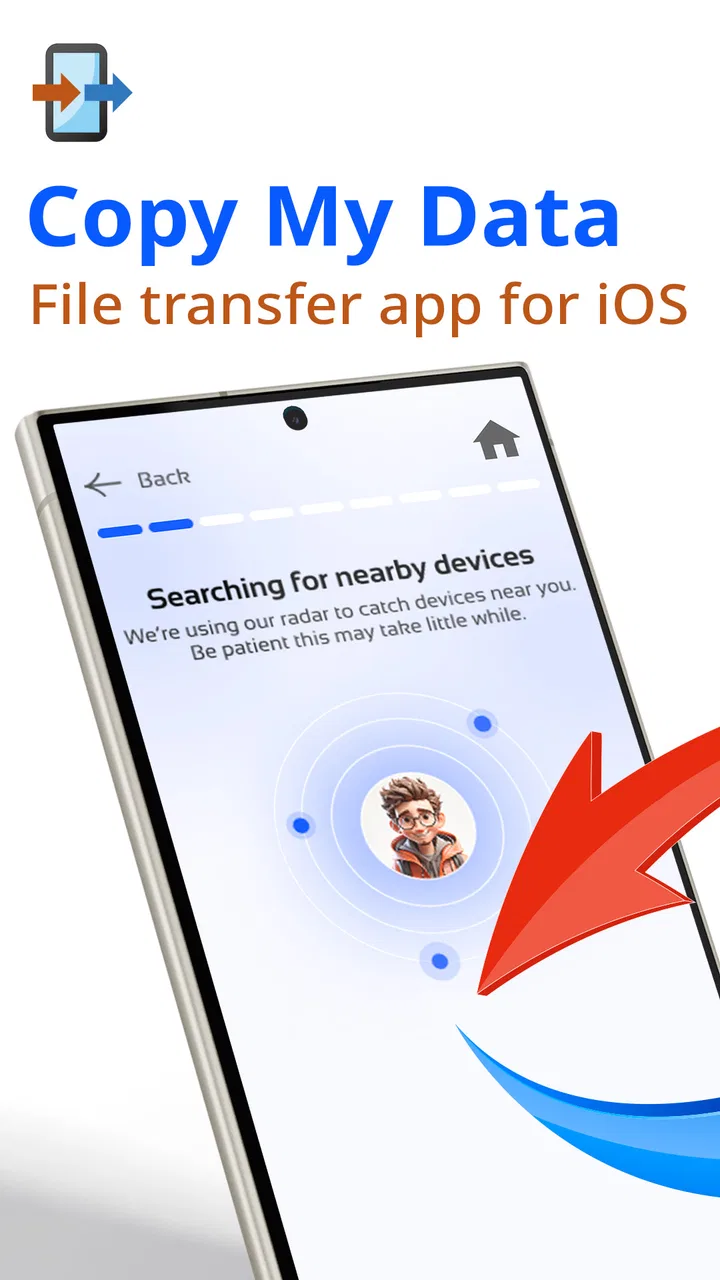
The app generally connects both phones to the same Wi-Fi network and uses one device as the source and the other as the destination. After selecting the data categories you want to copy, the transfer begins through the local connection rather than requiring cloud storage. For the best results, keep both phones nearby, connected to power if possible, and avoid closing the app until the process has finished.
03Can Copy My Data: Transfer Content transfer everything from my old phone?
No, users should not expect a complete clone of their old device. The app can transfer supported personal content, but system settings, application installations, login sessions, protected app data, and some media or calendar information may not be copied. Compatibility also depends on the operating systems, device permissions, and the type of content selected. Always check the new phone after transferring and keep a backup of important files.
04Is Copy My Data: Transfer Content safe and does it require internet access?
The app is intended to transfer data directly between devices over a local connection, so a mobile data plan is not normally necessary for the actual copying process. However, Wi-Fi and several permissions may be required to discover devices and access contacts, photos, videos, or calendars. Because permissions involve private information, review the requests carefully and use a trusted network. Avoid transferring sensitive data on public Wi-Fi.
05What should I do if the transfer with Copy My Data: Transfer Content fails or stops?
If a transfer does not complete, first confirm that both phones are connected to the same Wi-Fi network and that the app has the necessary permissions. Restarting the app or both devices can resolve connection problems, while keeping the phones close together may improve stability. Free storage on the destination phone is also important, particularly for large photo and video libraries. If only part of the content transferred, repeat the process for the missing categories.
Pros
- Simple setup with clear step-by-step transfer instructions.
- Works across Android and iOS devices without requiring a computer.
- Transfers contacts
- calendars
- photos
- and videos in one process.
- Useful for moving data when switching phones or platforms.
- Wireless transfers avoid cables
- adapters
- and extra hardware.]
- contras:[
- Transfer speed depends heavily on Wi-Fi quality and network congestion.
- Large photo and video libraries may take considerable time to transfer.
- Some app data
- messages
- and account settings are not supported.
- Both devices must remain nearby and active during the transfer.
- Free version may include ads or limit certain transfer options.
Cons
- Transfer speed depends heavily on Wi-Fi quality and network congestion.
- Large photo and video libraries may take considerable time to transfer.
- Some app data
- messages
- and account settings are not supported.
- Both devices must remain nearby and active during the transfer.
- Free version may include ads or limit certain transfer options.

Copy My Data: Transfer Content
Gallery